
You need a valid LogPoint License to operate your application. This license contains the details of the product purchased, the number of sources it can handle, and its expiration date.
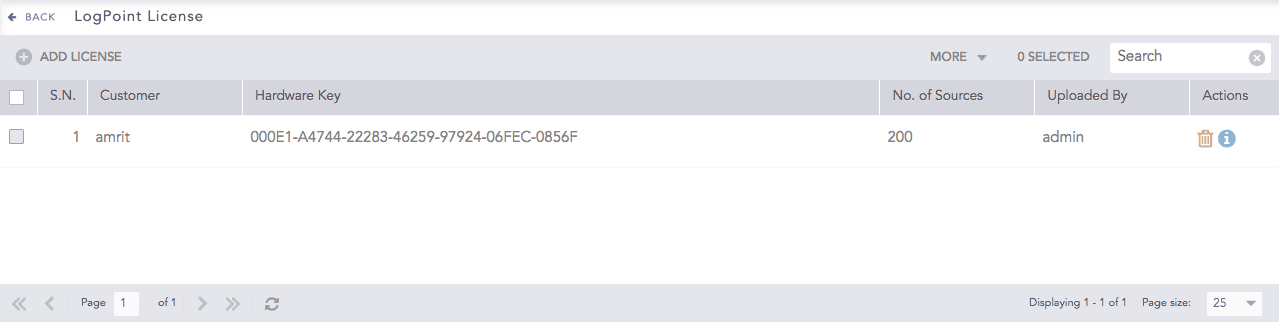
LogPoint Licenses
Note
You cannot edit a license.
Before adding a license, contact your vendor and provide them your Hardware Key. You can find this key displayed in your appliance. The vendor then sends you the license key based on your requirements.
Download the License Key.
Go to Settings >> System >> LogPoint License.
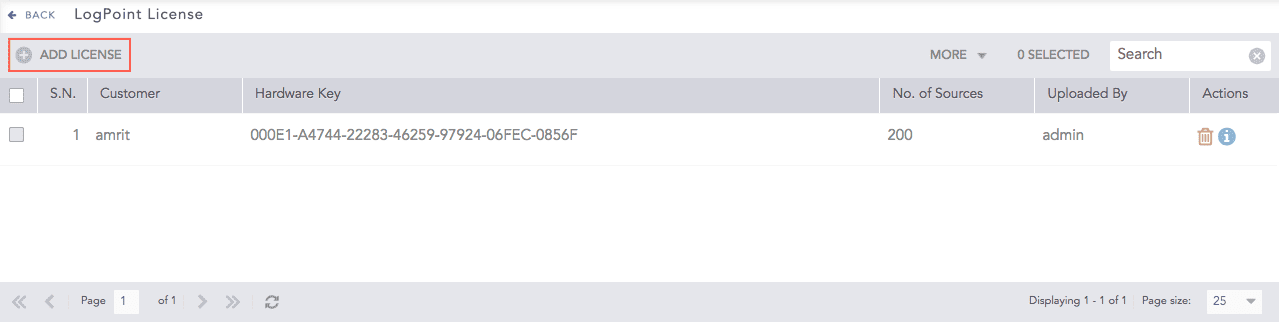
LogPoint Licenses
Click Add License.
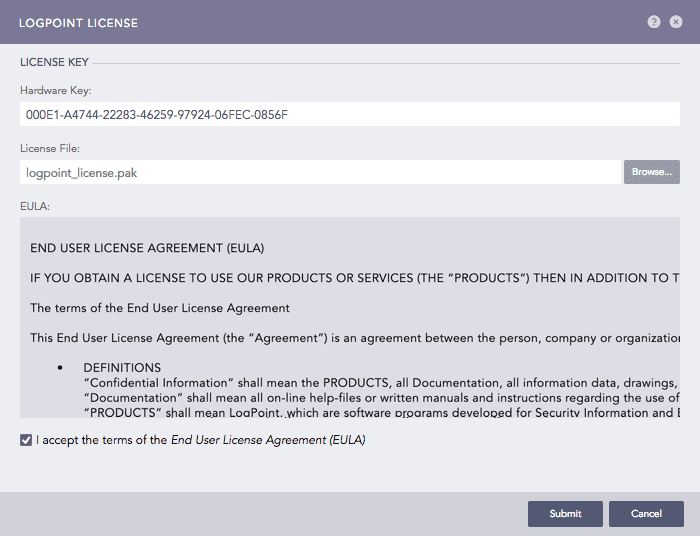
Addition of LogPoint License
Browse the file containing the License Key.
Go through the END USER LICENSE AGREEMENT (EULA). Mark the checkbox if you agree with the terms and conditions of the EULA.
Click Submit.
Before deleting a license, make sure that it is not in use.
Go to Settings >> System >> LogPoint License.
Click the Delete icon under the Actions column of the concerned license.
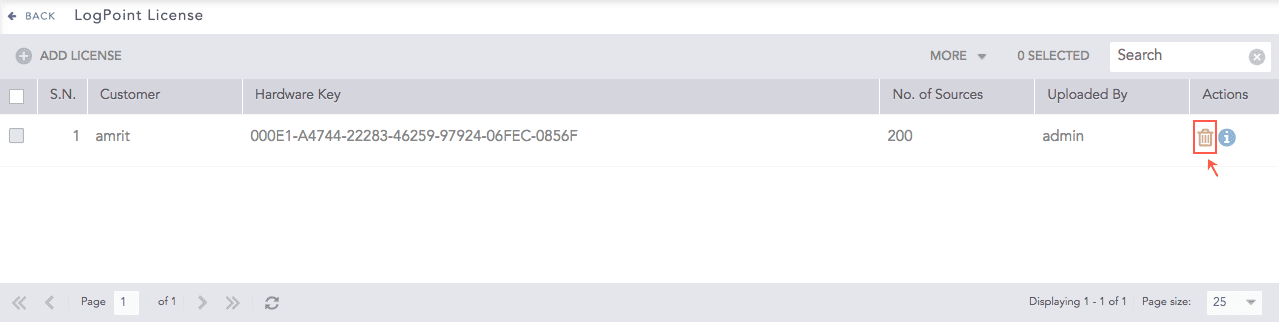
LogPoint Licenses
To delete multiple licenses, select the concerned licenses. Click the More drop-down menu near the top-right corner of the panel and choose Delete Selected.
To delete all the licenses, click the More drop-down menu near the top-right corner of the panel and choose Delete All.
A delete confirmation dialog box appears on the screen. Click Yes to proceed.